Reading your electricity meter should feel straightforward. A smart meter usually sends readings automatically to your energy supplier, yet there are times when you still need to take a meter read yourself, for example, when switching supplier, checking a bill, or if an older smart meter stops communicating.
This guide explains how to read a smart electricity meter in the UK, and what to do if you have a traditional meter. All steps follow current UK advice so you can record kWh readings correctly and send readings with confidence.
Why Smart Meters Matter And When Manual Readings Help
A smart electricity meter records how much energy you use and can share meter readings automatically in half-hourly, daily, or monthly intervals, depending on your data choice and contract date.
This improves bill accuracy and reduces the need to send in regular meter readings. If your meter stops sending readings automatically, or if you want to double-check a bill, you can still take a reading and submit it through your online account or app.
If you have a first-generation smart meter (often called SMETS1), it may have lost “smart” functions when you switched supplier, although a national programme is moving these meters onto the secure DCC network to restore automatic communication.
If this applies to you, you can still take readings and send them to your energy supplier until the migration completes.
Find Your Meter and Identify The Type Of Meter
Before you read your meter, check where the meter is located. Common places include a hallway cupboard, under the stairs, an outside meter box, or a basement cupboard in flats. Next, confirm your type of meter:
- Smart Electricity Meter, Single Rate: One rate for all times of day.
- Two Rate Meter: Also called Economy 7 or an off-peak electricity tariff. You will see two registers, often labelled R1 and R2, or “IMP” screens for each rate.
- Pay As You Go Meter: Prepayment smart meter with a card or key, or an app to top up.
- Traditional Meter: A legacy digital meter, mechanical meter, or dial meter that does not send readings automatically.
Smart meter screens vary, yet most have a digital display and one or two buttons. Many show A and B buttons to the right of the screen or a single OK button. Your in-home display (IHD) shows usage, but you should read the meter display for the official reading.
The Core Rule For Any Reading
When you read your meter, follow the same three rules:
- Read left to right.
- Record only the whole numbers in kWh for electricity, and ignore numbers after the decimal.
- Write down the number exactly as shown, including any leading zeros, and ignore digits in red or after the decimal point.
These rules apply to a smart electricity meter, a smart gas meter, and a traditional energy meter. For gas, the supplier converts your cubic metres to kWh on the bill, so you do not need to do that conversion yourself.
How To Read A Smart Electricity Meter
Follow these steps for most smart electricity meters. Your screen may look different, yet the sequence remains similar.
- Wake the screen. If the display is blank, press the button once. On many meters, the button to the right or the A button wakes the display.
- Find the import reading. Use the buttons to cycle through screens until you see kWh or a label such as IMPRT or IMP.
- Record the reading. Write down the number from left to right. Ignore any numbers after the decimal point.
- Check if you have a two rate meter. If the screen shows R1 and R2 readings, note both. R1 often shows off-peak and R2 shows peak, though some meters use the reverse. Your supplier will map each register to the correct rate.
- Submit the reading. Use your online account, the app for your energy supplier, or a phone line if you prefer not to use the web.
Many UK guides reference the IMPRT or IMP screen and the R1/R2 method for meters with two registers. These steps align with supplier support pages and independent advice.
Examples You May See
- A and B Buttons To The Right Of The Screen: Press A to wake the screen and B to move through readings. Stop at the kWh screen and record the number. This layout appears on several popular models described by suppliers.
- Single OK Button: Press and release to cycle through. Stop when you see IMPRT. Record the whole number and ignore the decimal.
Two Rate Meter Tips
If you have off-peak electricity, your two rate meter will show two readings. On some meters you press the middle button until you see R1, record that, then press again for R2. A further press may show T for total. This sequence helps you take a reading for both day and night rates.
If You Have A Traditional Meter
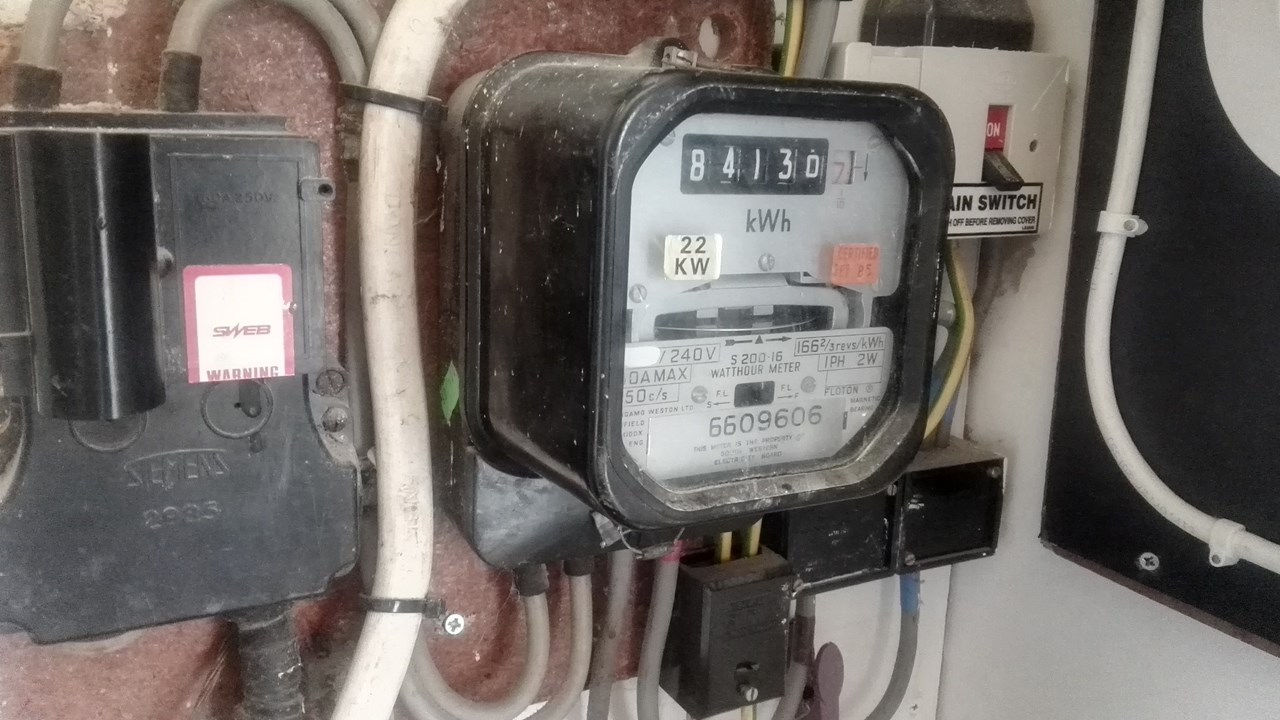
Some homes still have mechanical meters or dial meters. You may have a smart gas meter and a traditional electricity meter, or the other way around. If you read a dial meter, write down the digits from left to right.
When a pointer is between two numbers, take the lower number. Ignore any red digits or figures after the decimal. This method prevents over-reporting and is the standard approach in UK guidance.
Using Your In-Home Display
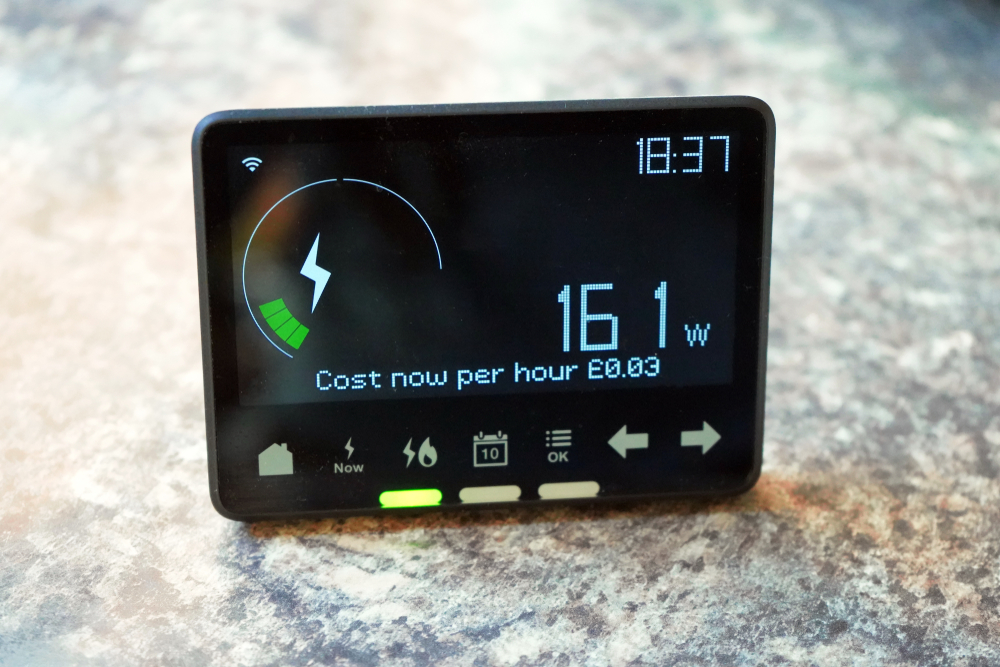
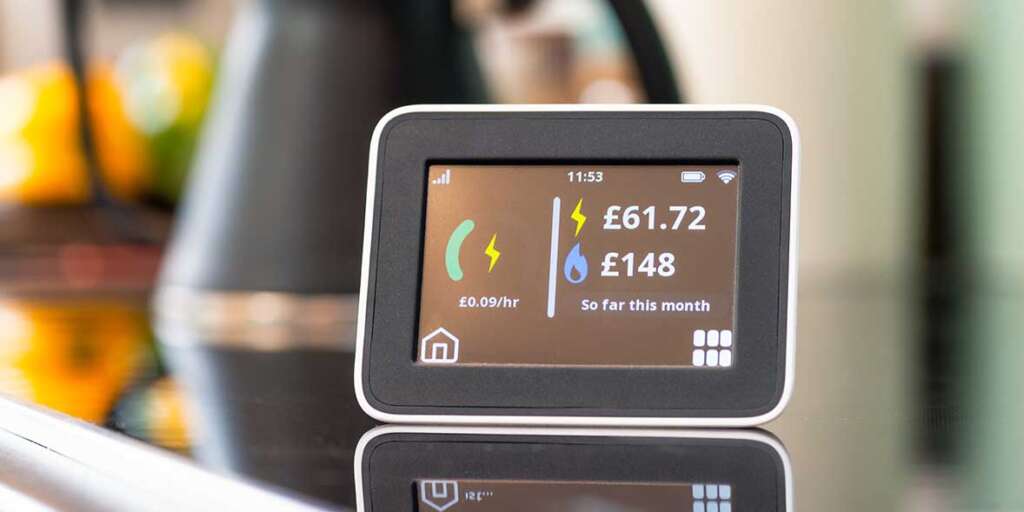
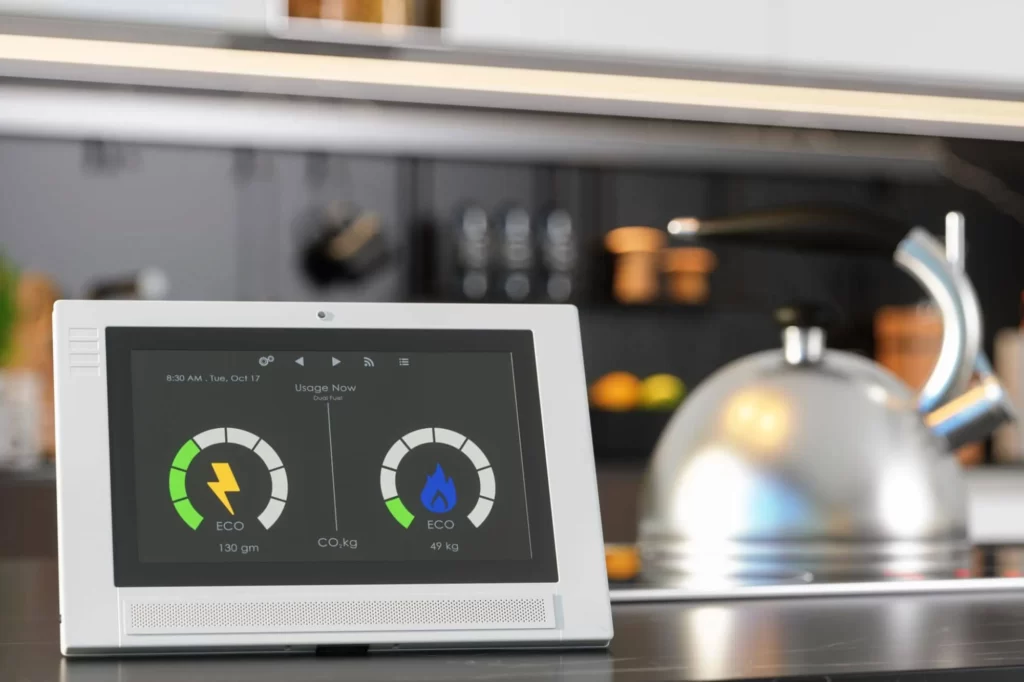
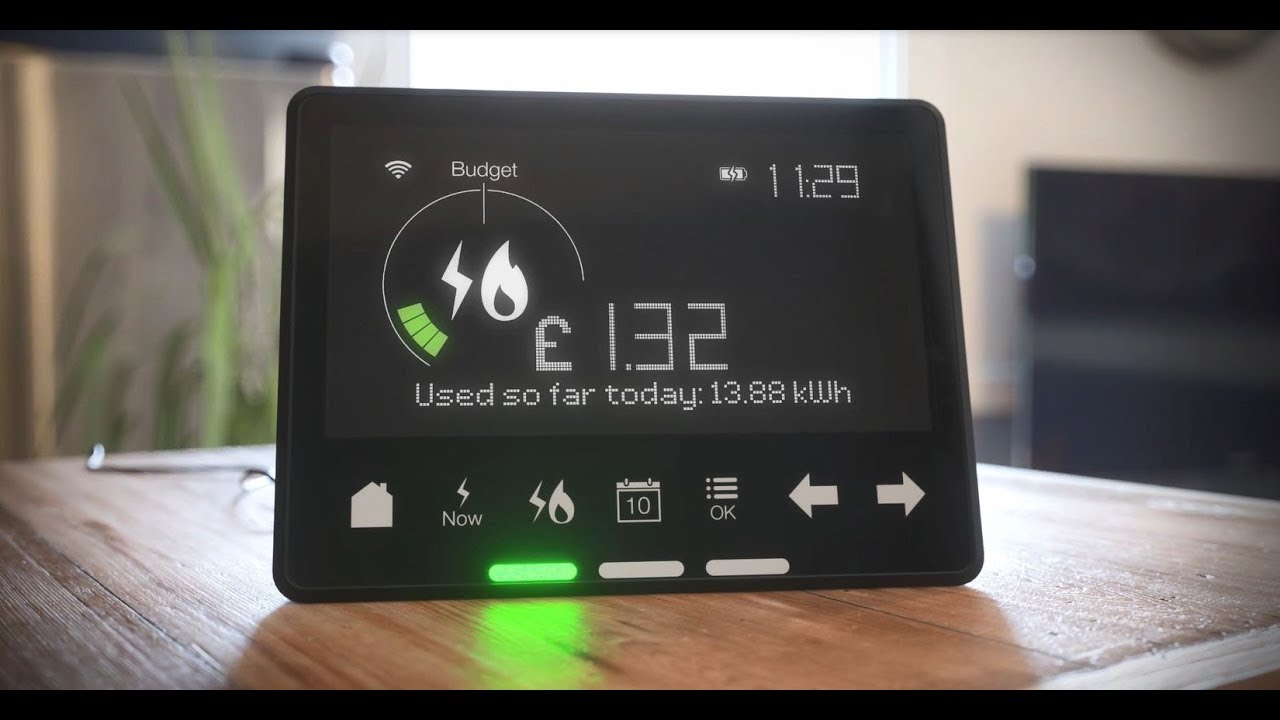
An in-home display helps you see how much energy you’re using. It shows your current electricity usage in kW and cost estimates, and it often includes simple traffic lights that reflect usage level.
Use the IHD for day-to-day checks, yet take any official reading from the meter display. If your IHD loses link to the meter, try moving it closer to the meter, power-cycle it, or contact your supplier for help. Suppliers provide specific IHD guides and features.
How To Send Readings To Your Energy Supplier
Even with a smart electricity meter that normally sends readings automatically, you may still want to send readings during price changes or after a billing dispute. You can:
- Submit a meter reading through your online account or the supplier app.
- Send meter readings by phone if your supplier offers an automated line.
- Use a photo of the digital display to reduce mistakes.
Most energy supplier sites, including British Gas, Octopus Energy, and OVO Energy, provide quick forms to send readings, guidance for regular meter readings, and steps to readings to your energy supplier during busy periods.
Their instructions mirror the “left to right” and “ignore numbers after the decimal point” principles.
When Readings Do Not Flow Automatically
If the meter automatically sends data, your bills should show actual meter reads. If your bills show estimates for several months, or your app asks you to take a reading, your meter may not be communicating. Steps to fix this include:
- Check signal and power. Ensure the comms hub near the meter has power and a network light.
- Contact your energy supplier. Ask them to reconnect or refresh the meter’s communication.
- Confirm your type of smart meter. An older smart meter may need DCC enrolment to restore full features after a supplier switch.
- Request support if you rely on a pay as you go meter and top-ups fail to reach the meter.
Recent UK policy updates seek better standards, faster fixes, and compensation when smart equipment does not work.
You can also verify whether your meters are operating in smart mode using the Citizens Advice checker, then plan whether to send readings to your supplier while a fix completes.
Step-By-Step: A Practical Guide To Reading Smart Meter
Use the checklist below as a guide to reading any electricity and gas meters in your home.
- Check Your Meter Installed Type: Look at the display and buttons. A smart electricity meter will show a digital display and “A/B” or “OK” buttons. A traditional meter may have rotating dials or a basic LCD. If you have gas and electricity, check both meters.
- Wake The Screen and Reach The Right Page: Press the button once to wake the screen. If there are multiple buttons, try the button to the right or the A button. Move between screens until you see kWh or IMPRT for electricity. For gas, find the volume in m³.
- Read Your Smart Electricity Meter: Read your meter from left to right. Write down the number and ignore numbers after the decimal point. If your type of meter shows R1 and R2, note both. If you are unsure which register is day or night, submit both; your energy supplier will map them.
- Read Your Smart Gas Meter Read: your gas meter from left to right. Ignore the decimal, and include leading zeros. You do not need to convert to kwh yourself.
- Read A Smart Gas Meter or Traditional Dial Meter: For a dial type, note each pointer value from left to right. If a pointer is between two numbers, pick the lower number. Ignore the red digits or decimals.
- Take Readings And Submit Them: Take readings for electricity and gas, then send your meter readings through your online account. If your supplier asks for “reading to us,” follow the link in your email or app. Some providers accept photos, which helps reduce mistakes.
- Confirm Receipt: Check your account the next day to make sure the system accepted the meter read. If not, try again or call support. During price changes, suppliers sometimes get busy, so submit early.
Supplier Examples And Terms You May See
- British Gas often says: “Write down the five numbers shown from left to right. Ignore the number after the decimal point.” This applies to electricity and gas.
- Octopus Energy explains how to find the A and B buttons and how to use them to reach the IMPRT screen.
- OVO Energy guides customers to the IMPRT label and shows steps for both single-rate and two-rate models.
You may also hear about gas smart meters, types of gas and electricity meters, energy meter upgrades, and meter readers who still visit some properties. If you prefer a visit or cannot access a meter, ask your supplier for help.
Pay As You Go, Economy 7, And Off-Peak Notes
If you use a pay as you go meter, your IHD or meter shows credit and top-ups. You still take a meter reading from the meter display when a supplier requests one.
If you use an off-peak electricity tariff such as Economy 7, you will have a two rate meter. Record both rate readings. If a bill looks off, check your meter and submit fresh readings to correct the account.
What If You Want To Get A Smart Meter
If you plan to get a smart meter, contact your energy supplier and book an appointment. The installer will fit the new electricity and gas meters, pair the in-home display, and test that the system can connect to your meter.
You do not pay for standard installation. After the meter installed visit, your supplier can send readings to your supplier automatically according to the data-sharing rules in place for your contract.
Common Mistakes To Avoid
- Recording figures from the in-home display rather than the meter display when asked for an official meter read.
- Mixing up numbers after the decimal with whole kWh.
- Failing to record both R1 and R2 for a two rate meter.
- Forgetting to include leading zeros when you write down the number.
- Waiting months to send readings, which increases the chance of estimates and back-billing.
FAQs
Do smart meter readings go to my supplier automatically?
Yes. Smart meters send readings to suppliers automatically, usually half-hourly, daily, or monthly. You can still take a reading if you want to check a bill.
My older smart meter stopped communicating. What can I do?
Contact your supplier and ask about DCC enrolment for first-generation smart meters. In the meantime, send meter readings manually.
Can I read my smart gas meter and submit it with my electricity meter?
Yes. Take gas meter readings from left to right, ignore decimals, and submit both gas and electricity readings together if the supplier asks for both.
Should I use my supplier app or website?
Most suppliers, including British Gas, Octopus Energy, and OVO Energy, accept readings through an app or website. Your reading to us page in your online account guides you through the process.
Conclusion
Reading a smart electricity meter does not need to feel complex. Wake the screen, find kWh, read left to right, ignore numbers after the decimal point, and write down the number. Do the same for your smart gas meter and note both rates on a two rate meter.
Use the meter display for your official meter read, and the in-home display to see how much energy you’re using. If readings do not send automatically, submit them through your online account or call your supplier. Check your meter regularly, keep photos for records, and you will keep bills clear and accurate.